
Have You Heard Your Team Talking About Claude Desktop?
Maybe a colleague mentioned it at a conference. Maybe you've been using Claude in a browser tab and wondered if there's a better way. There is.
Claude Desktop is a free Windows app that puts Anthropic's Claude AI directly on your computer. No browser required, no tab-switching, no logging in every time. Download the installer from claude.ai/download, run it, sign in with a free Anthropic account, and you're done in under ten minutes. The rest of this post walks through each step in detail—and covers the Windows quirks most likely to trip up credit union teams.
What Is Claude Desktop, and Why Does It Beat the Browser?
Claude Desktop is the official Windows (and Mac) app from Anthropic, the company that makes Claude. It's free to download and runs on your machine rather than in a browser tab.
The practical difference is file access. Claude Desktop can connect to folders on your computer, so you can point it at a folder of vendor contracts, board documents, or exam prep notes and ask questions about what's actually in those files. The browser version doesn't offer that out of the box.
Claude Desktop turns a powerful general-purpose AI into something that can actually see your documents. That's the shift from "interesting tool" to "part of how I work."
For a credit union executive, that opens up real use cases fast: summarizing a lengthy vendor proposal before a board meeting, drafting a response to a member complaint, or pulling themes from a stack of policy documents before an examiner visit.
What You'll Need Before You Start
- A Windows 10 or Windows 11 PC
- A free Anthropic account—you'll create one during install if you don't have one
- About ten minutes
That's it. You don't need IT to do this. That said, if your credit union manages its devices centrally and locks down software installs, check with your IT lead before starting. Some managed devices require admin rights to install new applications.
How to Install Claude Desktop on Windows
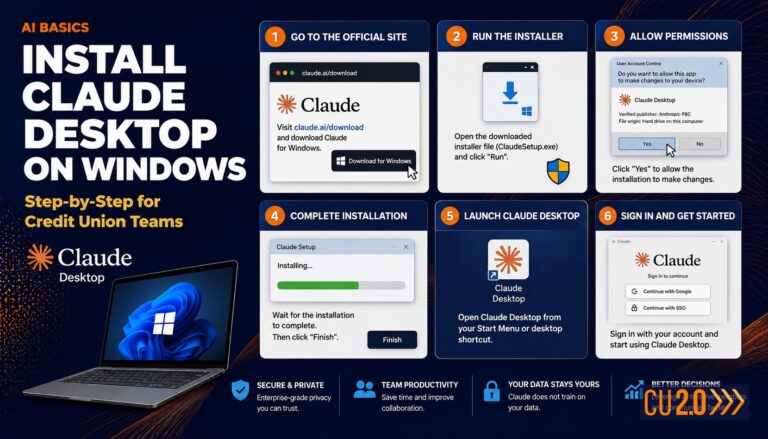
Step 1: Download the installer
- Open your browser and go to claude.ai/download.
- Click Download for Windows. The installer file (it ends in
.exe) will land in your Downloads folder.
Step 2: Run the installer
- Open your Downloads folder and find the file. It will be named something like
Claude-Setup-x64.exe. - Double-click it to run the installer.
- If Windows shows a security prompt asking whether you want to allow this app to make changes to your device, click Yes. This is normal for any new application.
- The installer runs quietly in the background. Claude Desktop opens on its own when it finishes—no long setup wizard to click through.
Step 3: Sign in to your Anthropic account
- When Claude Desktop opens for the first time, you'll see a sign-in screen.
- Click Sign in and enter your Anthropic account email and password. If you don't have an account yet, click Create account and follow the prompts. It takes about two minutes.
- Once signed in, you'll land on the main chat screen. Claude is ready to use.
Step 4: Pin Claude Desktop to your taskbar (optional but recommended)
- Find the Claude icon in your taskbar or Start menu.
- Right-click it and select Pin to taskbar.
This makes it a one-click open every morning. It's a small habit, but proximity drives adoption. The teams that use AI most consistently are the ones that don't have to go looking for it.
How to Connect a Folder to Claude Desktop
This is where Claude Desktop earns its keep for credit union work. Connecting a folder lets Claude read the files inside it and answer your questions based on what's actually in those documents—not just its general training.
A practical example: a folder of vendor RFP responses you're comparing, or a set of member-facing policy documents your marketing team is updating.
Here's how to connect a folder:
- Open Claude Desktop and click the settings or integrations icon. Depending on your version, it may look like a plug or a gear.
- Look for a section labeled MCP or Filesystem integration. Anthropic has been expanding these features, so the exact label may vary. Check Anthropic's current documentation at docs.anthropic.com for the most up-to-date steps.
- Select the folder you want Claude to access.
- Return to your chat and ask Claude something like: "Summarize the key terms across the vendor contracts in my Documents folder."
A few things worth knowing: Claude reads what's in the folder but does not modify or delete your files. Your documents stay on your machine and are not sent to a public database. That said, consult your compliance team before pointing Claude at any folder containing member PII or data covered by your information security policy.
Common Windows Gotchas
The app won't install. Your PC may require admin rights. Right-click the installer file and choose Run as administrator. On a managed device, contact your IT team.
Claude Desktop won't open after install. Check your system tray—the small icons near the clock in the bottom-right corner of your screen. Claude Desktop sometimes minimizes there rather than opening a full window.
The sign-in page is blank or won't load. This is common on credit union networks that filter outbound web traffic. Your network's firewall or content filter may be blocking claude.ai. Ask your IT team to whitelist claude.ai and any related Anthropic endpoints. It's a routine firewall configuration change.
You see a message about an outdated version. Claude Desktop updates automatically in the background, but if it prompts you to update manually, download the latest installer from claude.ai and run it. The process is identical to the original install.
Why Credit Union Teams Stick With the Desktop App
Many executives try AI in a browser once or twice, then forget about it. The browser experience works, but it has friction—open a new tab, log in, start a fresh chat with no context.
Claude Desktop removes that friction. When it's pinned to your taskbar and connected to your working folders, it stops being a novelty. Your loan ops team, your marketing lead, your executive assistant—they can reach for it the same way they reach for Word or Outlook. Many credit union teams report they simply use AI more often and more thoughtfully once it lives on the desktop like any other business tool.
One thing to set expectations on: Claude Desktop does not connect directly to your core. It can work with files you export from your core—reports, spreadsheets, summaries saved to a local folder—but there is no native integration with core banking platforms.
What's the Risk?
Claude Desktop's risk profile is relatively low for general productivity use, but there are real considerations for credit unions before you roll it out broadly.
The main one is data handling. When you connect a folder, Claude reads those files locally. Anthropic's current data practices indicate that conversations may be used to improve their models unless you're on a paid plan with data controls. Before connecting any folder that contains member NPI, loan data, or anything covered by your information security program or GLBA obligations, consult your compliance team first. For marketing copy drafts, internal training materials, or publicly available documents, the risk is low and you can move freely. For anything touching member data, get compliance sign-off.
On the examiner front, NCUA hasn't issued specific guidance on desktop AI tools as of this writing, but examiners are increasingly asking about AI governance. If you're deploying Claude Desktop across a team, document the use case, the data involved, and any guardrails you've put in place. That documentation will serve you well in any future exam conversation. Vendor concentration risk is worth noting too: Anthropic is a single AI provider, so factor that into your third-party vendor management thinking.
Frequently Asked Questions
Is Claude Desktop free to install?
Yes, Claude Desktop is free to download and install. You'll need a free Anthropic account to sign in. Claude also offers paid plans with higher usage limits and additional data privacy controls.
Do I need IT help to install Claude Desktop on a credit union PC?
Not necessarily. On a personal or unmanaged work PC, you can install it yourself in about ten minutes. On a managed device locked down by your IT team, you may need admin rights or IT approval—check your credit union's software install policy before you start.
Is it safe to connect my credit union's documents to Claude Desktop?
Claude Desktop reads files on your machine and does not send them to a public database. That said, consult your compliance team before connecting any folder containing member PII or data covered by your information security policies, especially given GLBA obligations.
What's the difference between Claude Desktop and using Claude in a browser?
Both let you chat with Claude, but Claude Desktop lives on your PC, opens with one click, and can connect to local folders and files. The browser version requires logging in each session and does not have native local file access.
What should I do if my credit union's network blocks Claude Desktop?
Credit union networks often use content filters that block new domains. Ask your IT team to whitelist claude.ai and any related Anthropic endpoints—this is a routine firewall configuration change.
Want to Dig Deeper?
CU 2.0 works with credit union executive teams—at institutions of all sizes—to build real AI fluency, not just awareness. Whether your team is brand new to tools like Claude Desktop or ready to automate entire workflows with Claude Code and custom integrations, we'll meet you where you are and help you move forward with confidence. Book a call to learn how AI coaching works for credit unions.